 GETGOODAPP COLLECTION
Download Accelerator: Download Manager for Mac
Manage file downloads on Mac with HTTP, HTTPS and FTP support, adjustable connection threads and speed settings.
Available on the Mac App Store.
A closer look.
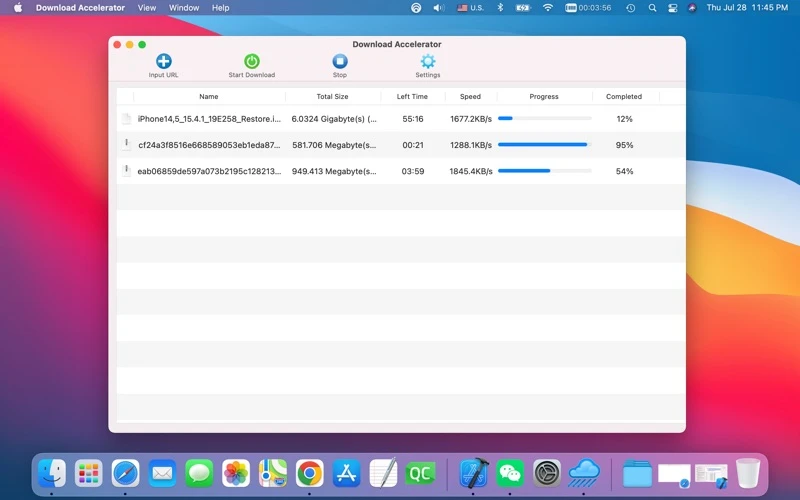
Download Accelerator is a Mac download manager for file URLs. Its official listing describes HTTP, HTTPS and FTP downloads, dividing a file into segments with multiple connection threads, and resuming an interrupted transfer.
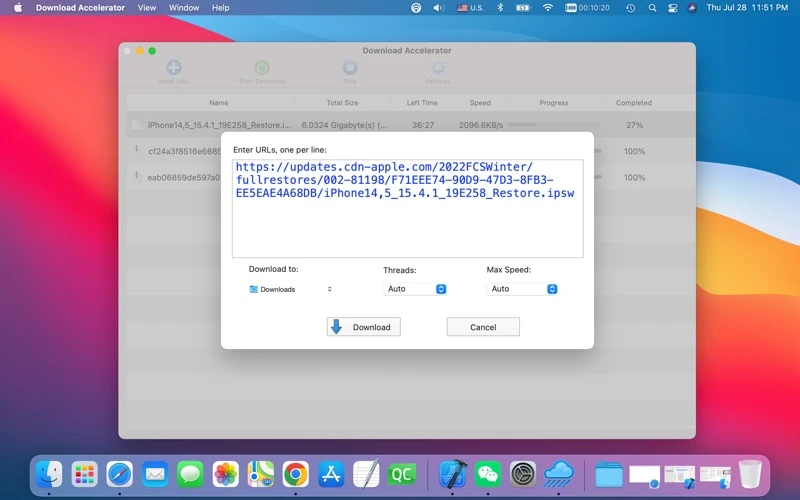
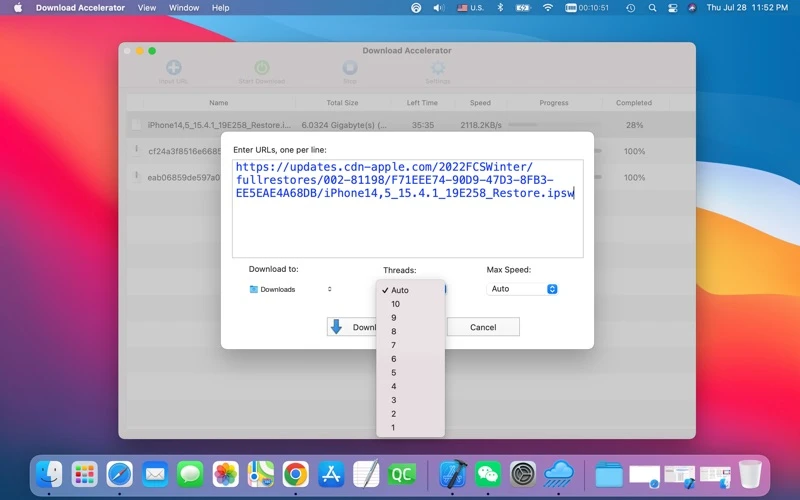
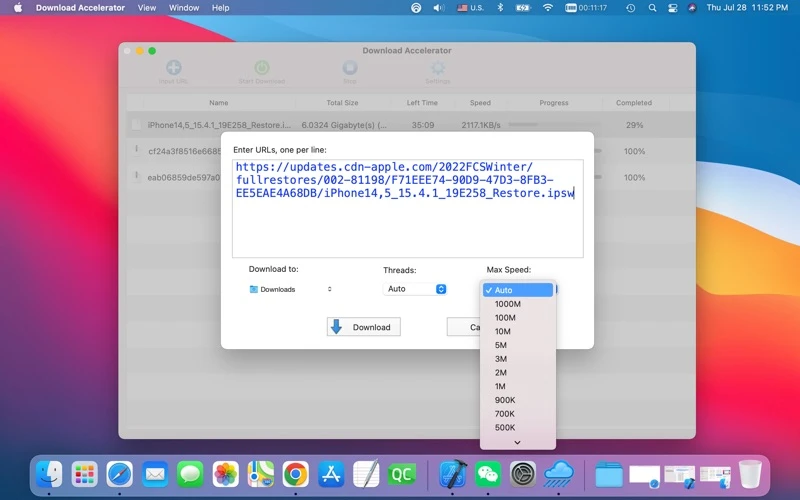
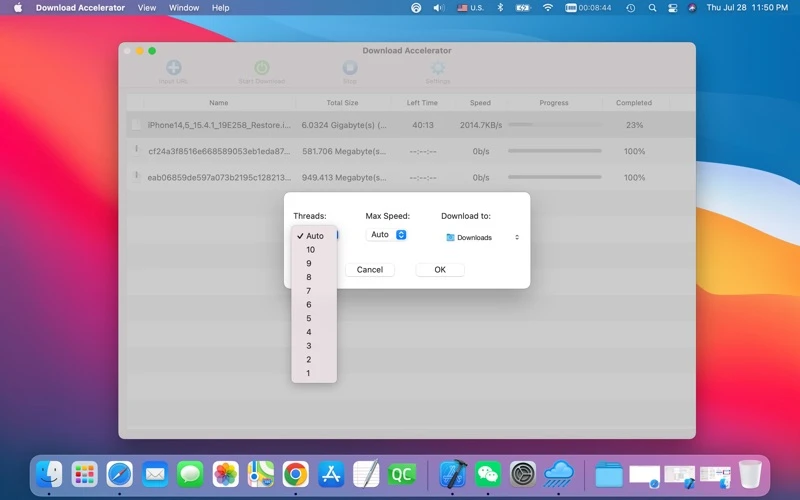
The official images show a list of download tasks and an Input URL dialog that accepts one URL per line. This is useful for organizing several file links in one place. Threads and Max Speed controls let you configure the download; no fixed acceleration factor or concurrent-task limit has been verified here.
Resume, segmentation and attainable speed depend on the source server and network. This page does not guarantee downloads from every site, authenticated links, browser integration or video-platform extraction. The features and workflow below come from Apple’s listing and official images, not a new app test.
Interface and link input
Apple lists an English app interface. The official listing names HTTP, HTTPS and FTP; the images show manual file-URL entry. No browser extension or automatic browser-link capture is established by these materials.
Download and related tools
Screenshots
Core features
- HTTP, HTTPS and FTP file downloads, as listed by the developer.
- Per-file segmented transfers using multiple connection threads, described in the official listing.
- Breakpoint resume support is listed; success with a particular server has not been tested here.
- Adjustable Threads and Max Speed controls, visible in the official URL/settings dialogs.
- Multiple file-URL tasks in the download list; the input dialog says one URL per line.
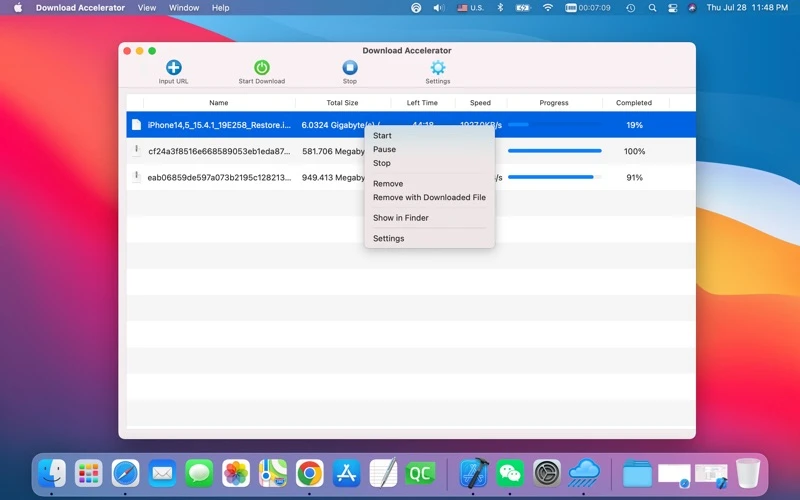
- Start Download and Stop toolbar actions; official context-menu images also show Start, Pause and Show in Finder.
How it works
Official-image workflow, not a download test: choose Input URL, enter file URLs one per line, choose Download to and the available Threads/Max Speed settings, then choose Download. Use the task list and its Start Download, Stop or context-menu controls to manage transfers. Check the resulting file yourself; no sample download was run for this page.
Platforms, downloads & licensing
Mac
- Version
- 2.0
- Updated
- 2022-08-04
- System requirements
- App Store minimum: macOS 10.9 or later. Interface: English. The minimum does not establish current macOS, Apple Silicon or Intel operation.
- Platform-specific features
- Official listing: HTTP/HTTPS/FTP, segmented multi-thread transfers, thread/speed controls and resume.
- Price & license
- Paid Mac App Store download. Checked 20 October 2026: US$2.99 in the US and ¥22 in China. Current regional prices and purchase terms are set by Apple. No website installer or payment is offered.
- Free tier limits
- No trial or detailed upgrade/license terms are established here. Resume and segmented transfers depend on the server; actual speeds, supported sites and current task/thread limits have not been independently tested.
Frequently asked questions
Which protocols are documented?
The official listing names HTTP, HTTPS and FTP. It does not establish every authentication method, redirect pattern or protocol variant.
Can it resume a download?
Breakpoint resume is a developer-listed feature. The available material is not a new resume test, and server support matters.
Does it split a file across several connections?
Yes, the developer describes segmented multi-thread transfers. The images show a Threads selector; more threads do not imply a guaranteed speed increase.
Can I manage more than one file link?
The official images show several tasks and a URL dialog accepting one URL per line. They do not establish a guaranteed maximum number of simultaneous transfers.
Is browser integration included?
The verified material shows manual Input URL entry, not a confirmed extension or automatic browser integration.
Will every site or video link work?
No universal compatibility or video-platform extraction is established. Use an accessible file URL; support for a particular site or signed/authenticated link needs separate verification.
Related guides & articles
Related articles will appear here when published.