How to merge PDFs on iPhone: a PDFWay tutorial
2026-10-19
A step-by-step merge walkthrough with genuine PDFWay 1.2 (2) simulator screenshots, sample PDFs and the verified two-page result.
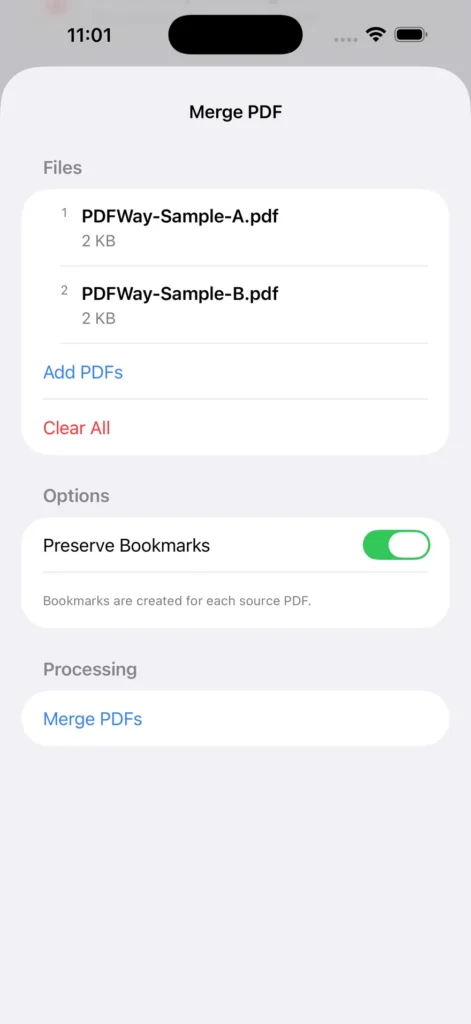
To merge PDFs on iPhone with PDFWay, open Merge PDF, import at least two PDFs, check their order and tap Merge PDFs. Use Save to Files to save a separate result. This walkthrough uses two one-page PDFs and checks the saved page count and order.
Version and test conditions
Tested: PDFWay 1.2 (build 2), iPhone 17 Pro Max simulator, iOS 26.5, on 18 October 2026. We used an existing runnable local build without changing its source, features, version or signing. All screenshots record this session. This was not a physical iPhone test of the App Store binary; equivalence to that build has not been established.
Before you start
Get PDFWay from the official Apple App Store listing; see the PDFWay product page for product and platform information. Save two readable, unencrypted PDFs in Files first. The current store minimum is iOS 17.0; this session ran only on the iOS 26.5 simulator.
Download sample A: Project Notes (blue, one page) and sample B: Project Checklist (green, one page). Both are public examples created for this tutorial, with no personal or customer data.
1. Open Merge PDF
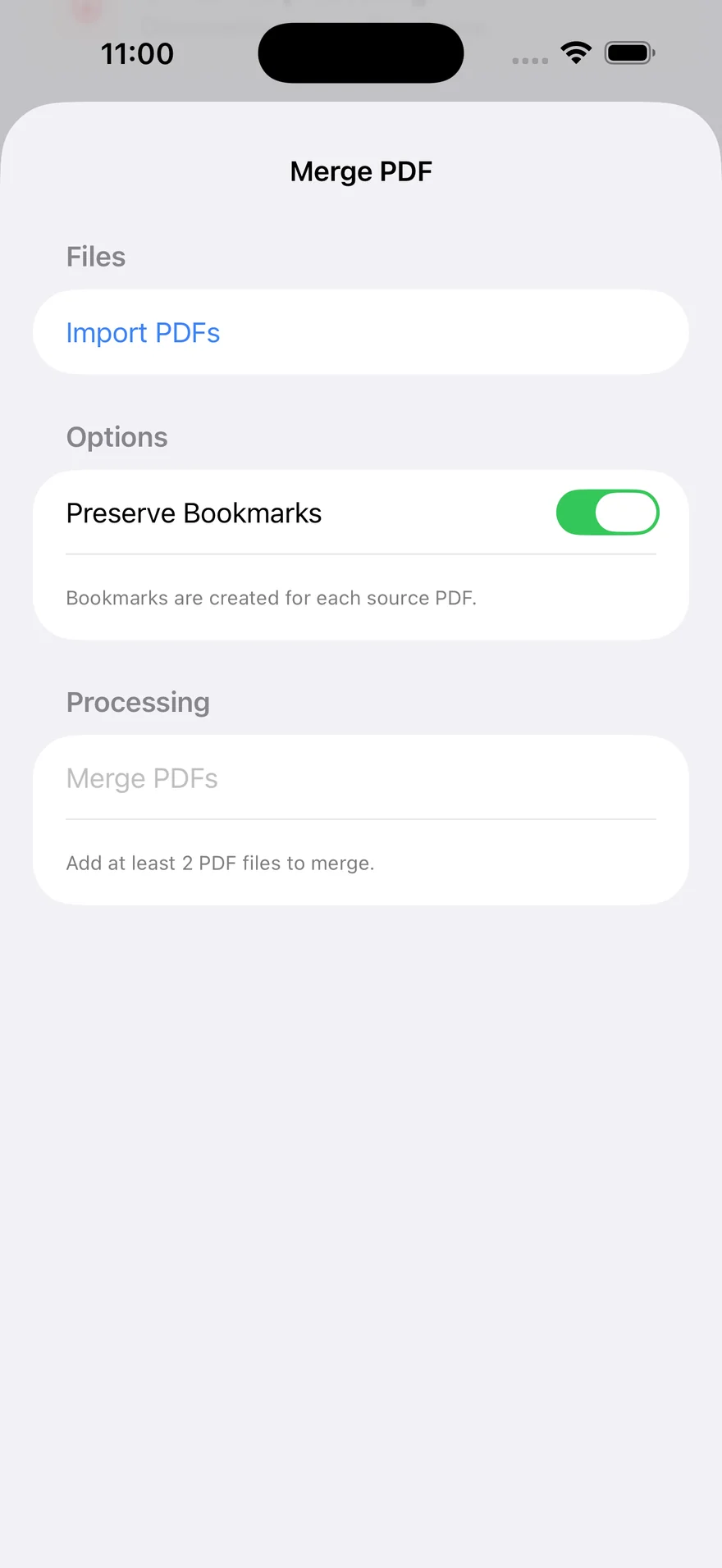
On the PDFWay Home screen, choose Merge PDF under More Tools, then tap Import PDFs. The merge button is disabled for an empty queue or a single file; the screen asks for at least two PDFs.
2. Import the two PDFs
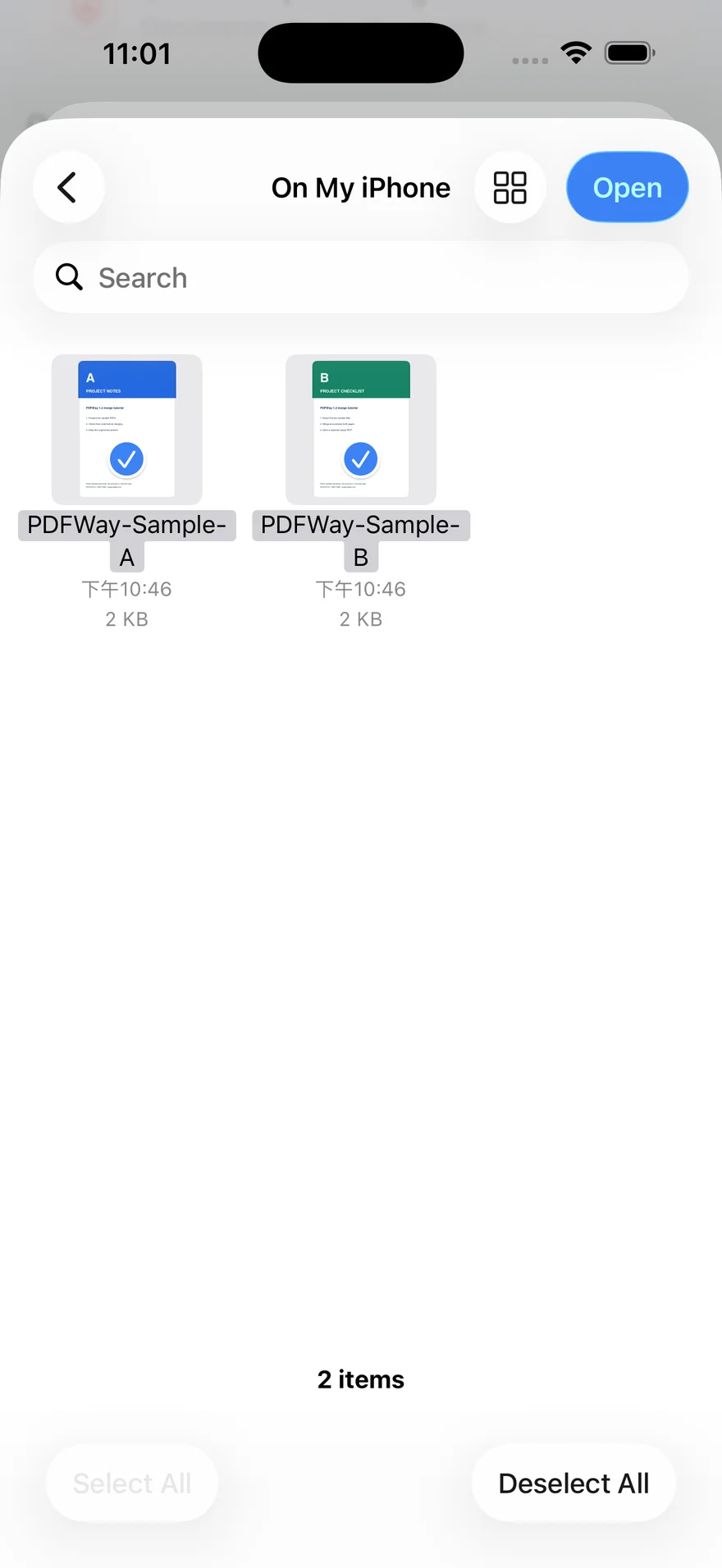
In the file picker, locate sample A and sample B, select them and tap Open. You can also import A first, then use Add PDFs for B. Importing was exercised in both the Chinese and English app interfaces. The system picker can look different with another iOS version or language.
3. Check the order, then merge
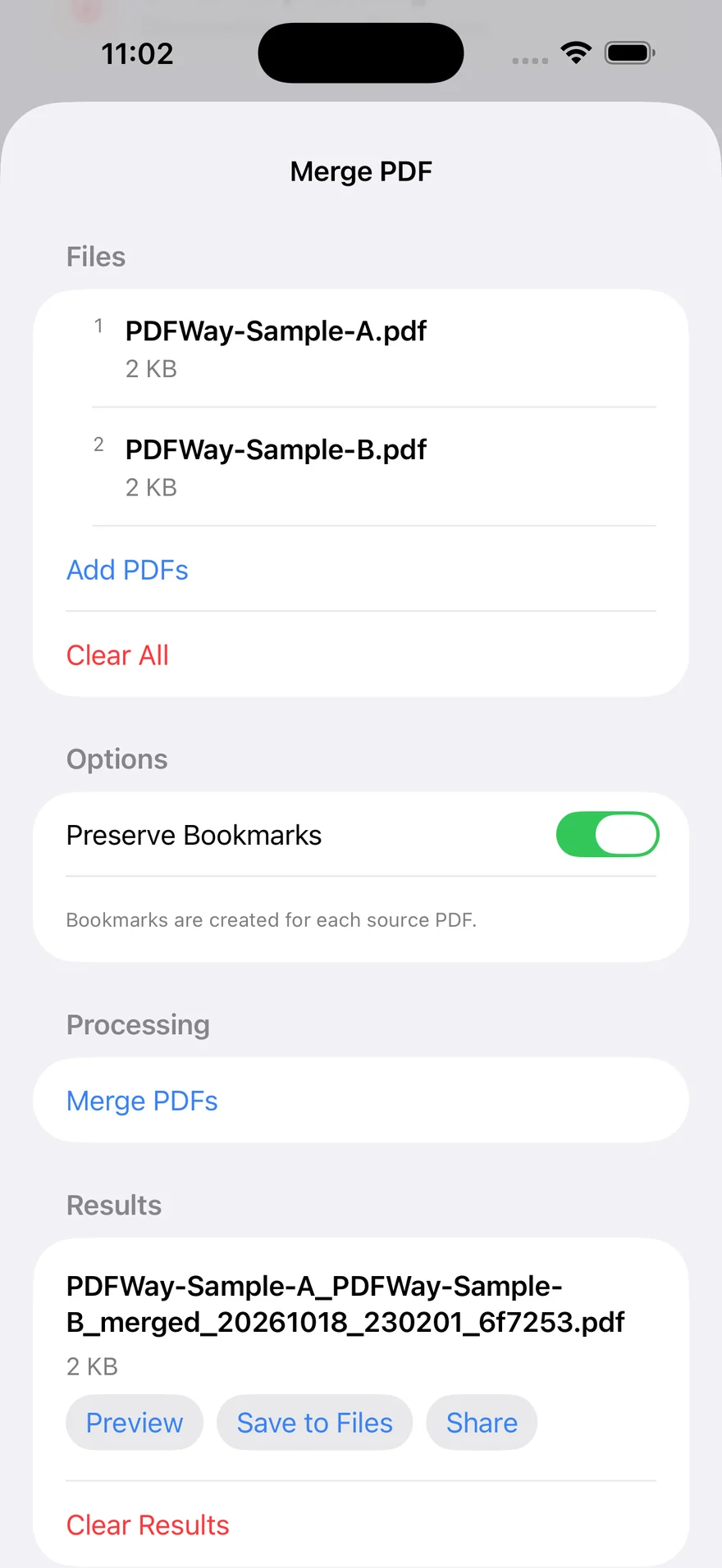
Check the numbered queue: PDFWay-Sample-A.pdf should be 1, and PDFWay-Sample-B.pdf should be 2. If the order is wrong, use Clear All and import the files individually in the required order. Save any existing result first: clearing the queue also cleared the current result in this test. We also changed B, A into A, B by removing B and appending it again. Drag sorting was not verified.
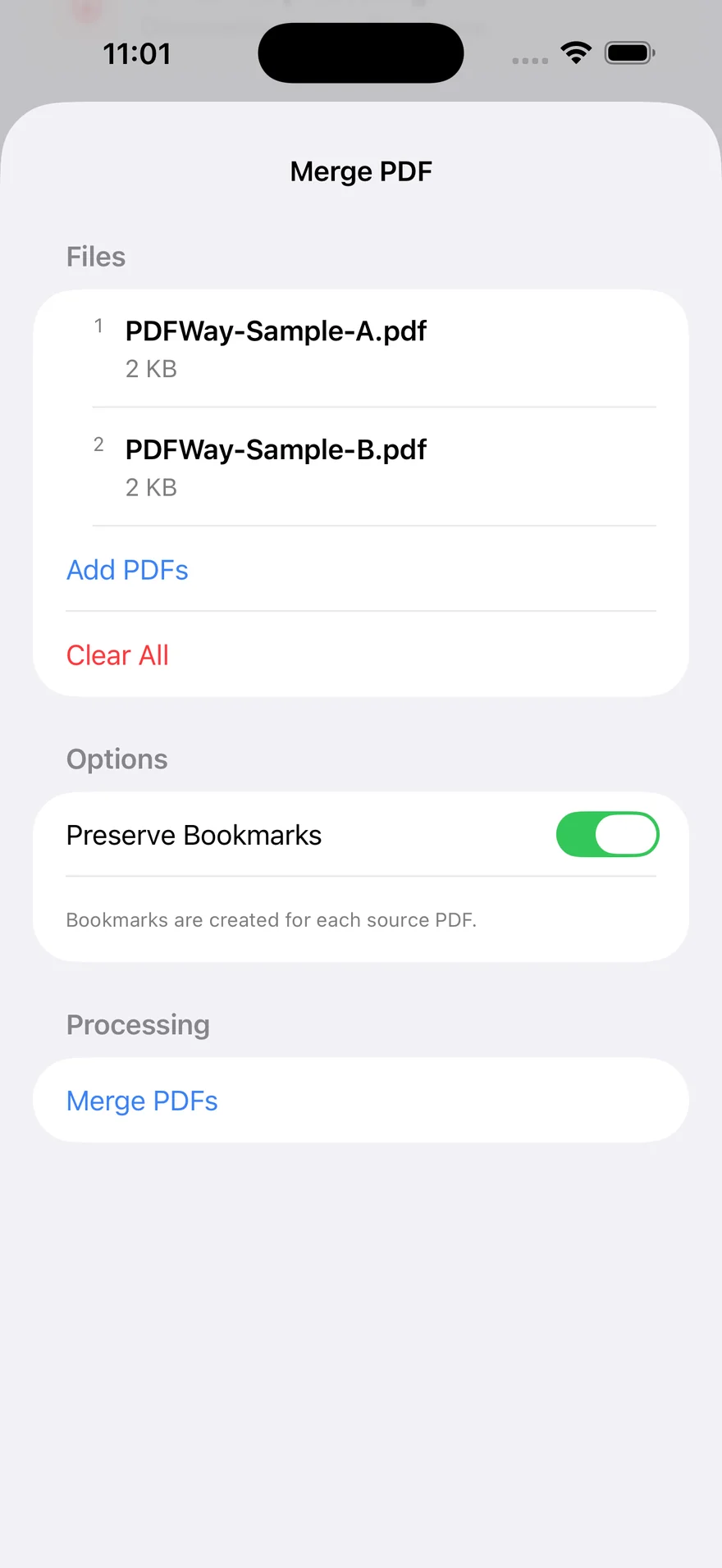
Tap Merge PDFs and wait for a new PDF in Results. Preserve Bookmarks was left at its default setting; bookmark fidelity was not tested.
4. Save a separate result
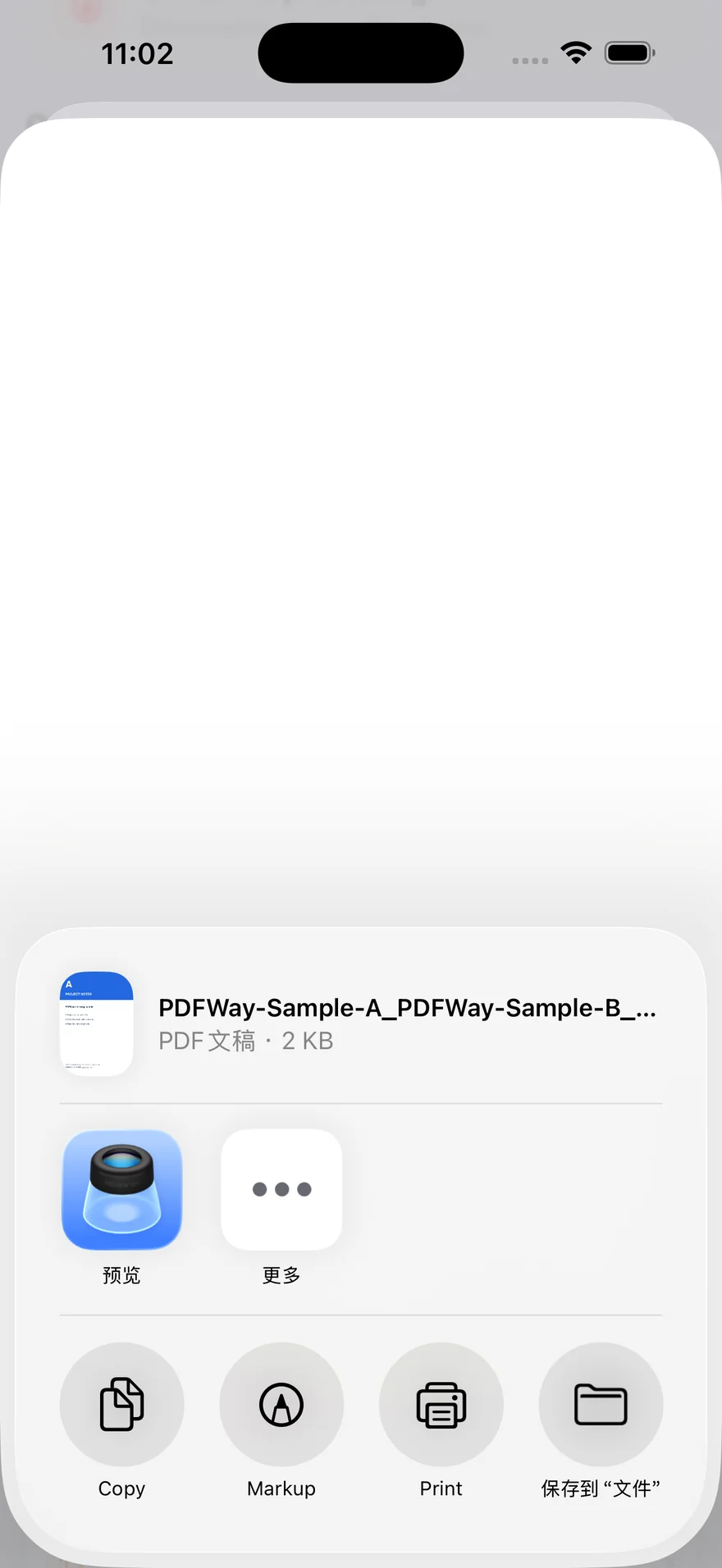
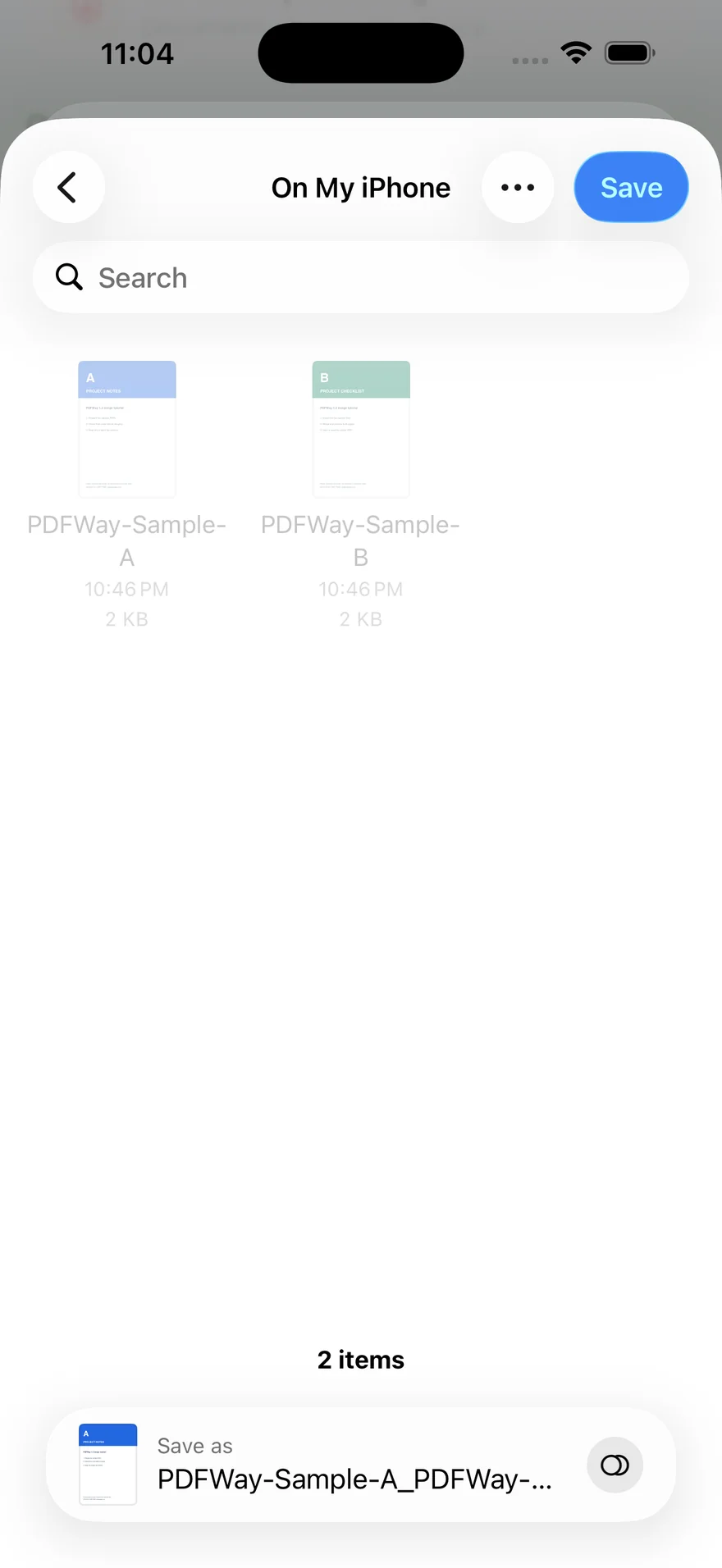
Tap Save to Files in Results. In this build it first opens the system sharing sheet; select its Save to Files folder action to reach the destination picker. Choose On My iPhone, keep or edit the filename, then tap Save. The sharing sheet in our capture is Chinese (保存到“文件”); the destination picker is English. Saving succeeded, and both original sample files remained separate.
5. View the result and check its pages
Preview displayed the blue A page followed by the green B page. We also parsed and rendered the file actually saved to Files with an independent PDF tool: it contains two pages, with PROJECT NOTES first and PROJECT CHECKLIST second. The generated filename includes the source names and a time marker, so yours may differ.
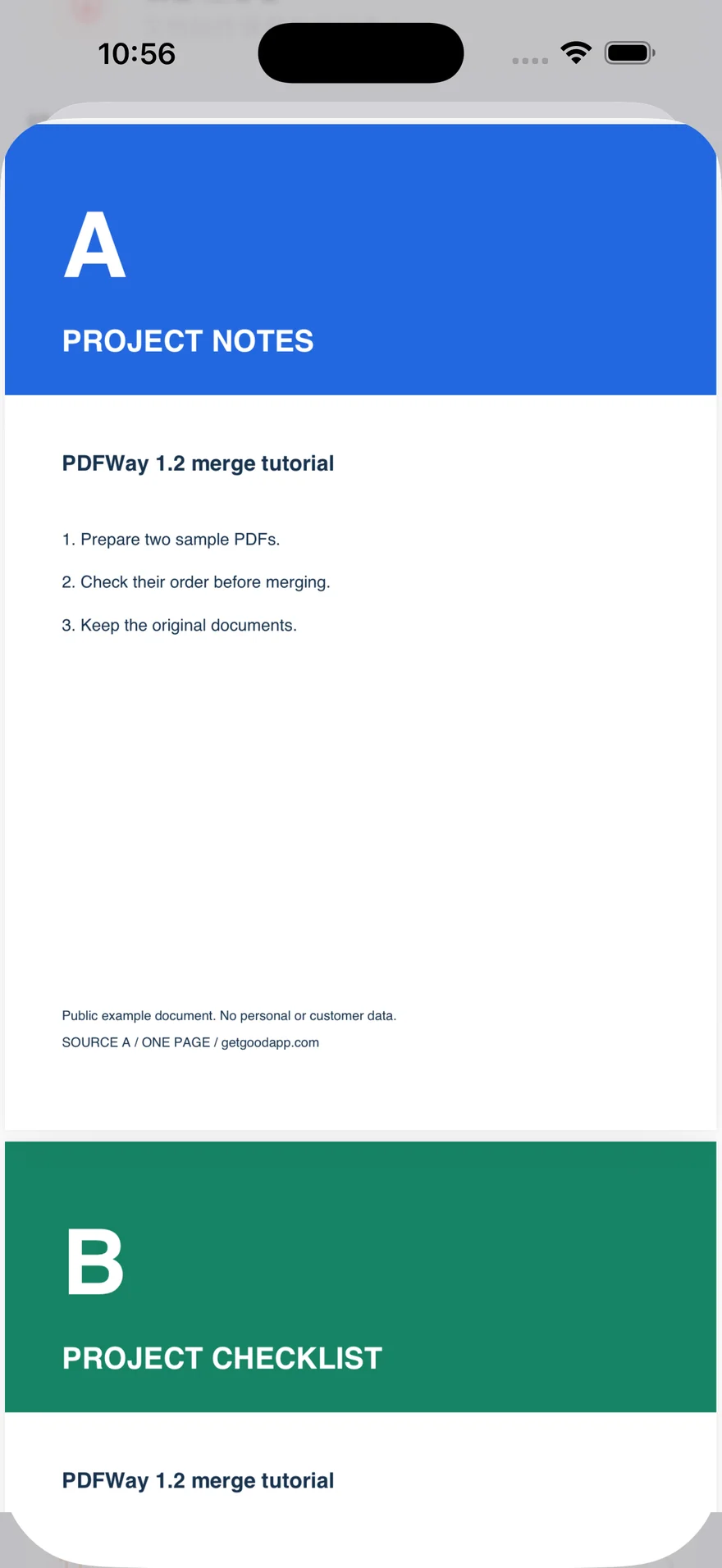
Open the actual merged sample PDF (two pages, public example).
Questions and tested limits
Why is Merge PDFs disabled?
It was disabled with zero or one PDF and became available after the second file was added. Only two small, unencrypted, one-page examples were tested. Large, corrupt or encrypted files, and multi-page source files, were not tested.
Does this establish unlimited free merging?
No. The local 1.2 (2) build showed no purchase prompt during these sample merges. That does not establish the App Store version’s free quota, file-count or size limits, or Pro entitlements. This walkthrough makes no such promises; check the current in-app prompts.
What if I cannot leave Preview?
The simulator displayed the preview, but our automated dismissal did not succeed. After restarting the app, the result remained in Recent PDFs. The cause and physical-device behavior are unverified. Save the result before entering Preview. This observation does not establish a bug in the released App Store build.
Product and official download
PDFWay features, platforms and support · Download PDFWay from the Apple App Store.
Related apps
 PDFWay→