 GETGOODAPP COLLECTION
Batch Print – PDF Printer for Mac
Add several PDFs, preview pages and choose their submission order before printing on Mac.
Available on the Mac App Store, version 1.0.
A closer look.
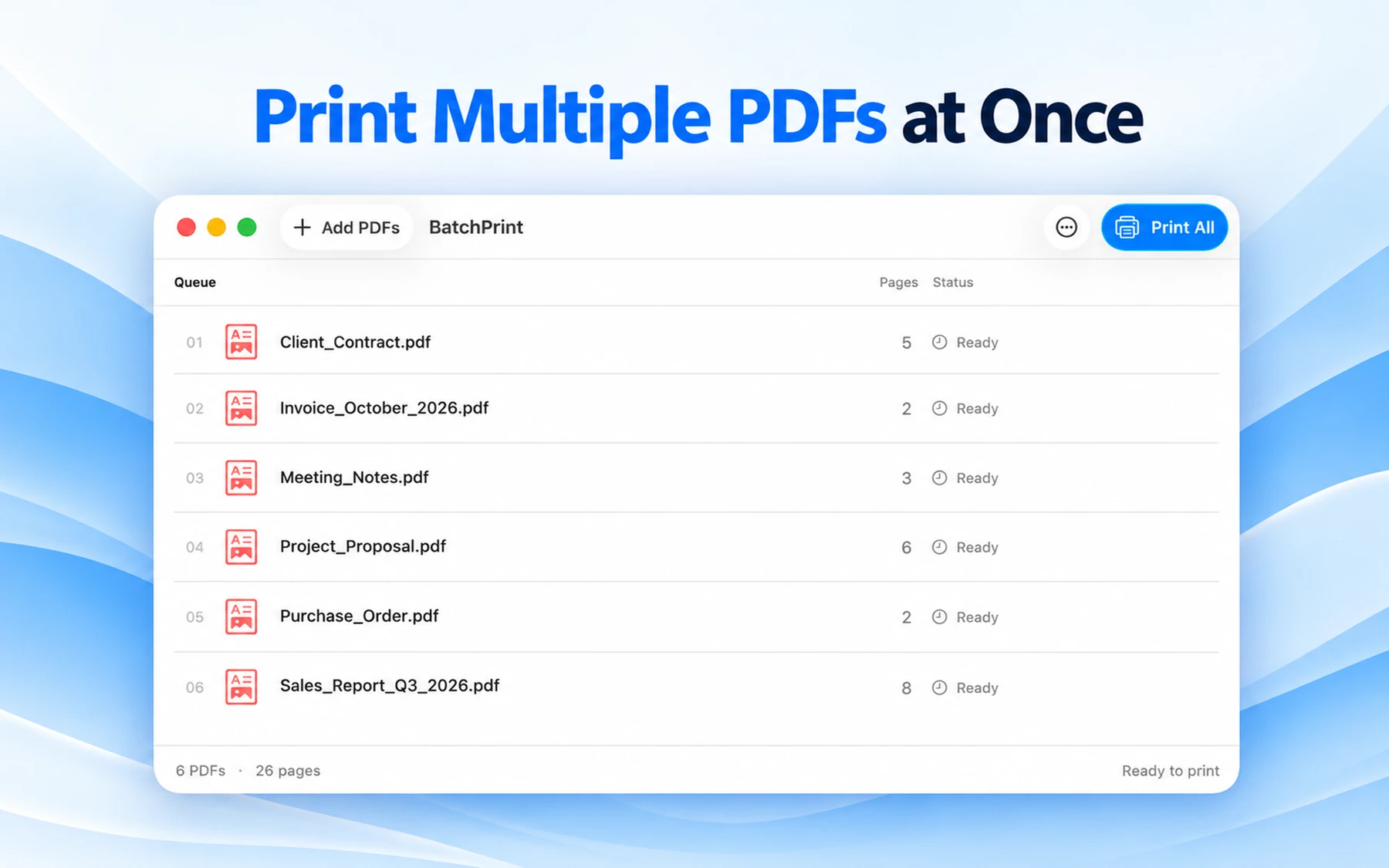
Batch Print – PDF Printer is for Mac users who have several PDFs ready to print. Put them in one queue, check the pages and set the submission order before using the macOS print panel. Version 1.0 accepts PDF files.
When a PDF print queue is useful
- Invoices saved as PDFs: put the invoice files in the order you want to submit them.
- Class handouts in PDF: check the documents and page counts before sending the batch.
- Reports exported as PDFs: preview each report and remove files you do not need.
These are examples of PDF documents. They do not mean the app opens accounting files, presentation files or word-processing formats directly.
From PDFs to submitted jobs
Add PDFs → check page counts, preview and order → choose Print All → review macOS print settings → confirm submission. Then check the system printer queue and physical output.
Before you buy
Version 1.0 requires macOS 14.0 or later and a configured physical printer with compatible macOS support. Paper, duplex and color options depend on the printer and driver. The app submits jobs to macOS; it does not guarantee physical completion or bypass every system confirmation.
PDF only. Export other document formats to PDF in their original app first. Batch export through Save as PDF and the print panel’s Preview destination is not supported; the app’s own document preview is available.
Get the current Mac App Store version
Buy through the Mac App Store. Checked 21 October 2026: US$2.99 in the US (USD) and ¥22.00 in China mainland (CNY). The official listing describes a one-time purchase with no subscription. Current regional prices, availability and terms are set by the store; trial and future upgrade terms are unconfirmed.
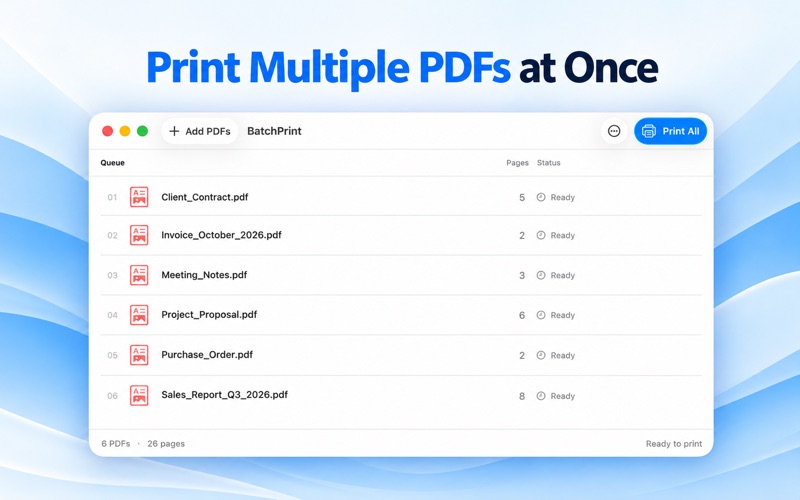
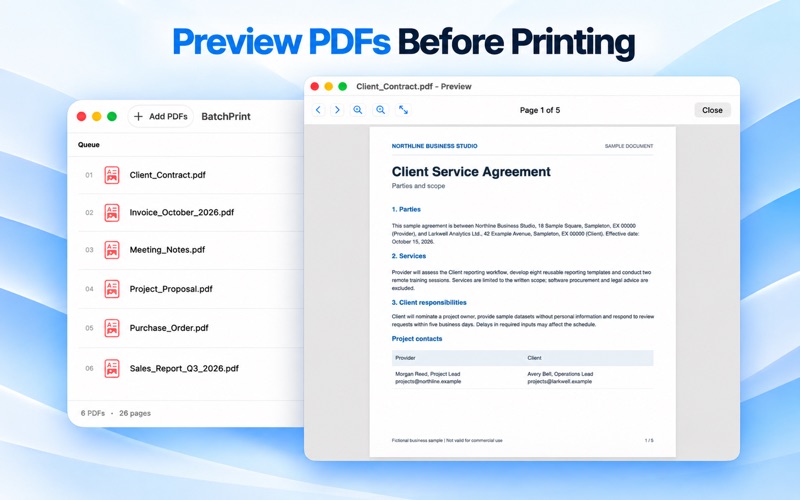
Official screenshots: queue, preview and printing
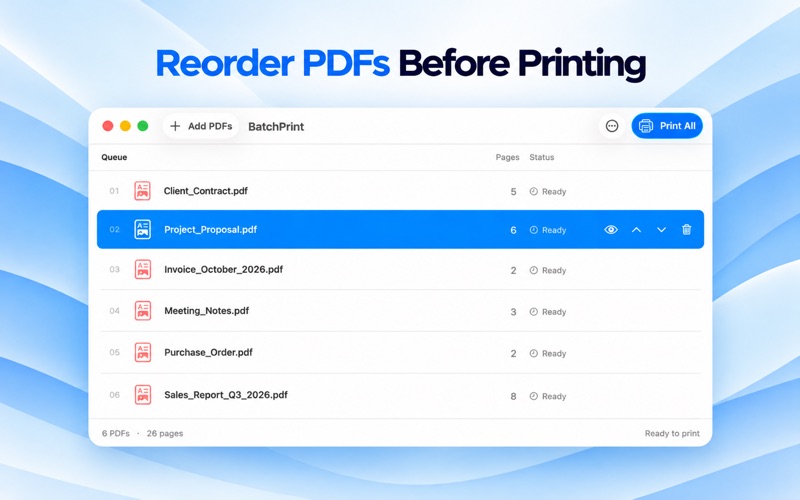
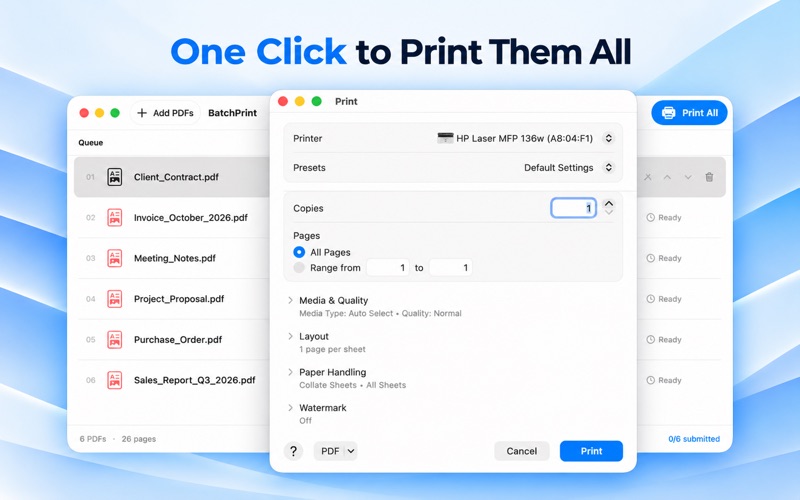
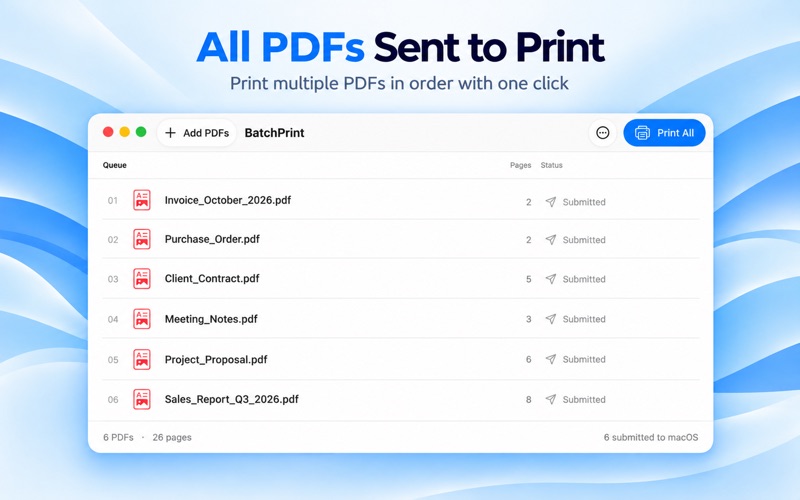
These five promotional images come from the current Mac App Store listing and show an English interface. They are not a hands-on test of the store build. In particular, the fourth poster’s “One Click” wording does not mean macOS confirmation can be skipped. The retained hero/legacy image remains labeled as a local development build.
Screenshots
Core features
- Add multiple PDFs with Add PDFs or drag them in from Finder.
- See filenames, page counts, total pages and queue status.
- Preview PDF pages before printing.
- Use Move Up / Move Down or drag rows to set the submission order.
- Remove a file or clear the app queue without deleting the original PDF.
- Use native macOS print settings and submit PDFs as separate jobs in queue order.
How it works
1. Add the PDFs. Check filenames and page counts, and preview the documents.
2. Arrange the queue, then choose Print All to review the printer and available settings in macOS.
3. Confirm the settings to submit the batch, then check the macOS printer queue. Official support describes reusing the batch settings; complete any system or printer prompts that appear.
Platforms, downloads & licensing
Mac
- Version
- 1.0
- Updated
- 2026-10-20
- System requirements
- macOS 14.0 or later (official App Store minimum). A configured physical printer is required. Intel/Apple Silicon distribution and individual printer compatibility are not independently verified.
- Platform-specific features
- PDF import, queue management, preview and sequential native macOS printing; PDF only.
- Price & license
- Paid download through the Mac App Store; official listing: one-time purchase, no subscription. Checked 2026-10-21: US$2.99 (US/USD), ¥22.00 (China mainland/CNY). Regional availability, current prices and terms are set by the App Store. Trial and upgrade terms remain unconfirmed.
- Free tier limits
- No free or trial entitlement is confirmed. Purchase through the App Store; current regional terms apply.
Frequently asked questions
How do I print multiple PDFs on Mac?
Add the PDFs to Batch Print – PDF Printer, check their order and previews, then choose Print All. Review the macOS printer settings and confirm submission. A compatible configured printer is required.
Can I change the file printing order?
Yes. Use Move Up / Move Down or drag rows before submitting the batch. Files are submitted to macOS in queue order; actual printing is handled by macOS and the printer.
Does it support Word or Excel files?
Version 1.0 imports PDF files only. Export the Word or Excel document to PDF in its original app first.
Does Submitted mean printing is finished?
No. Submitted means the job was handed to macOS. Check its printer queue and the printer for actual completion.
Do I need a compatible printer and driver?
Yes. Configure a physical printer on your Mac and use compatible macOS printer support. Available paper, color and duplex settings depend on that setup; universal printer compatibility has not been verified.
How do I buy it?
Use the Mac App Store button for app ID 6821621831. The official listing describes a paid, one-time purchase with no subscription. Current price and purchase terms depend on your store region.