How to export a transparent PNG with BGAway: batch saving
2026-10-19
Real one-image batch screenshots and the original transparent PNG, with the observed free-mode size, watermark and distinction from the single-image JPEG save path.
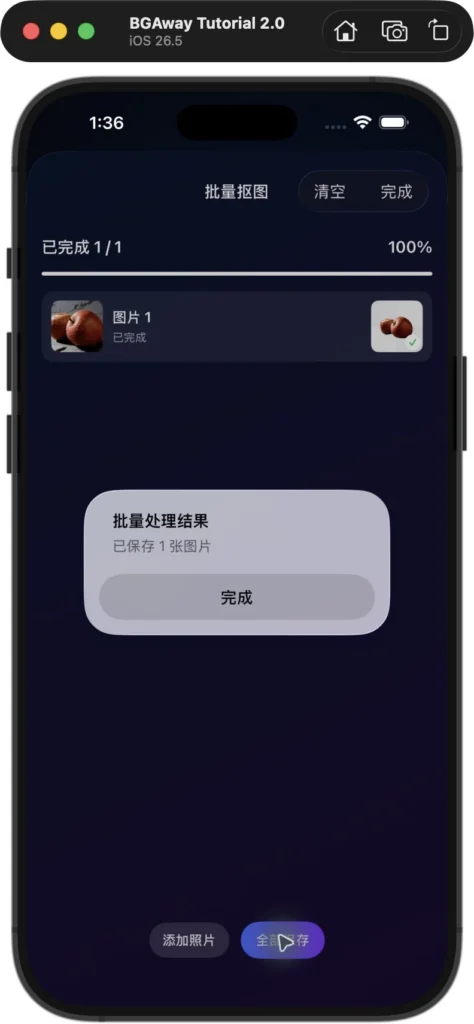
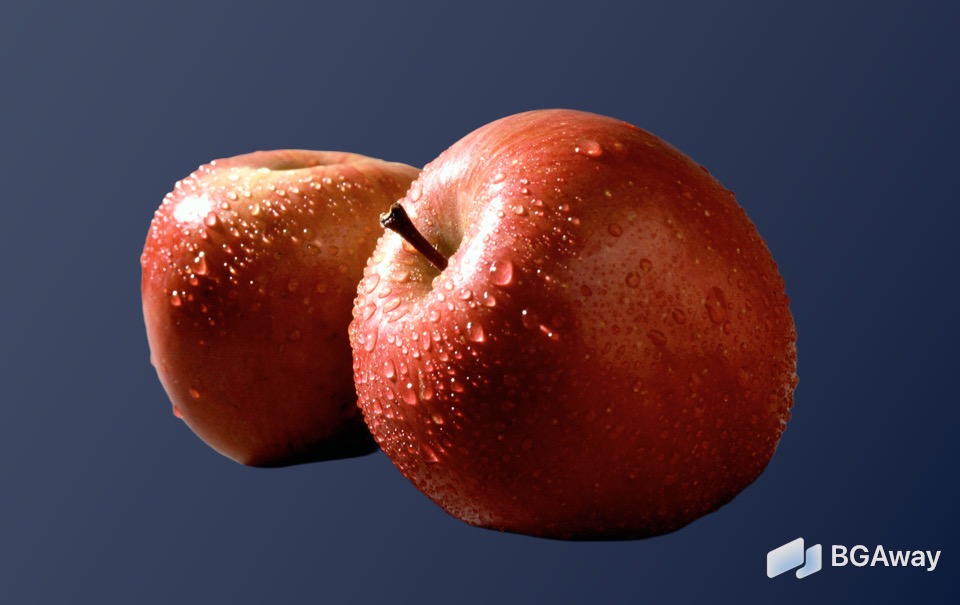
In this BGAway 2.0 (122) simulator test, Batch Remove → Select Photos → select one original photo → Start Batch → Save All produced a transparent PNG. The Photos original is PNG/RGBA, 960 × 605, with 357,753 fully transparent pixels, retaining both apples and the BGAway watermark. Batch saving is a different path from Save to Photos on the single-image result screen; the earlier single-image path produced an opaque JPEG.
Test environment and scope
Tested on 19 October 2026 with the existing BGAway 2.0 (build 122) Release simulator build, on an iPhone 17 Pro Max simulator running iOS 26.5. This session ran exactly one one-image batch in free mode; the counter changed from 19/20 to 18/20. No purchase, restore, app change, version change or re-signing was performed. Screenshots show the actual Chinese simulator UI. English button names were checked in this binary’s localization resources. This does not verify the App Store binary, physical devices, Pro, Mac or all platforms.
Prepare an image and get the app
App links: BGAway product page · official Apple App Store listing. The current listing is version 2.0 with iOS 17.0 as the minimum. A matching version number does not establish equivalence to this local build.
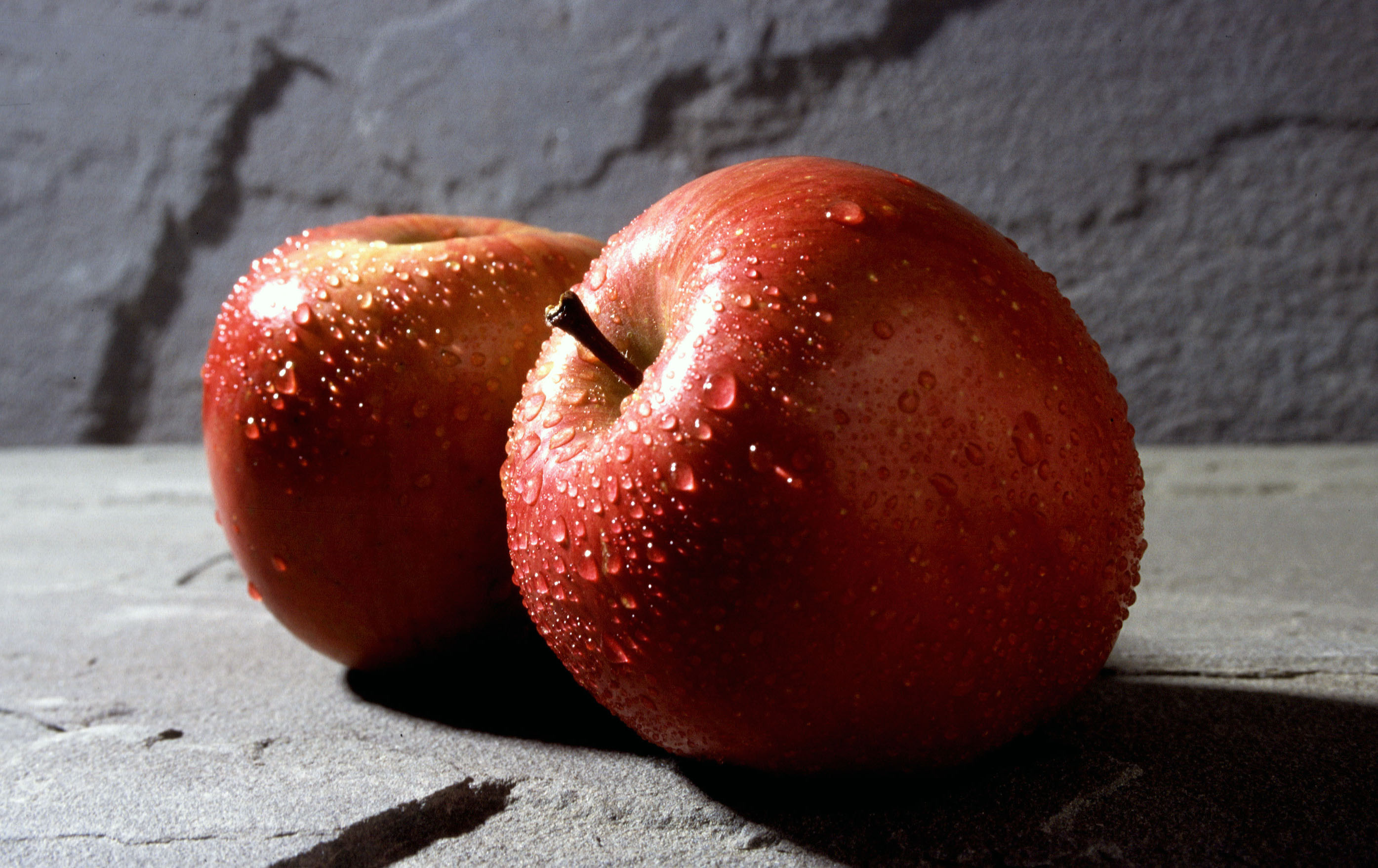
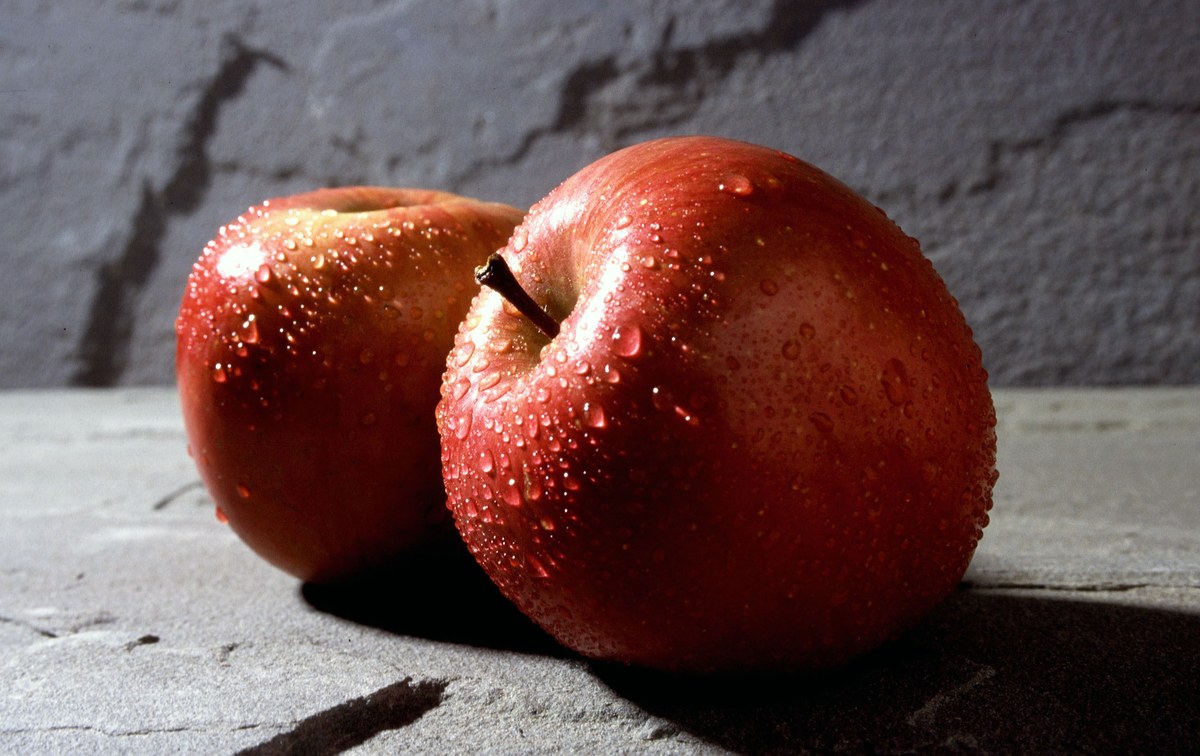
The input is Fuji apple.jpg by Scott Bauer / USDA ARS, identified as public domain on its source page. It contains no personal data. Download the input original (JPEG, 2790 × 1758). The original was retained unchanged; the image below is a website-size preview.

1. Open Batch Remove
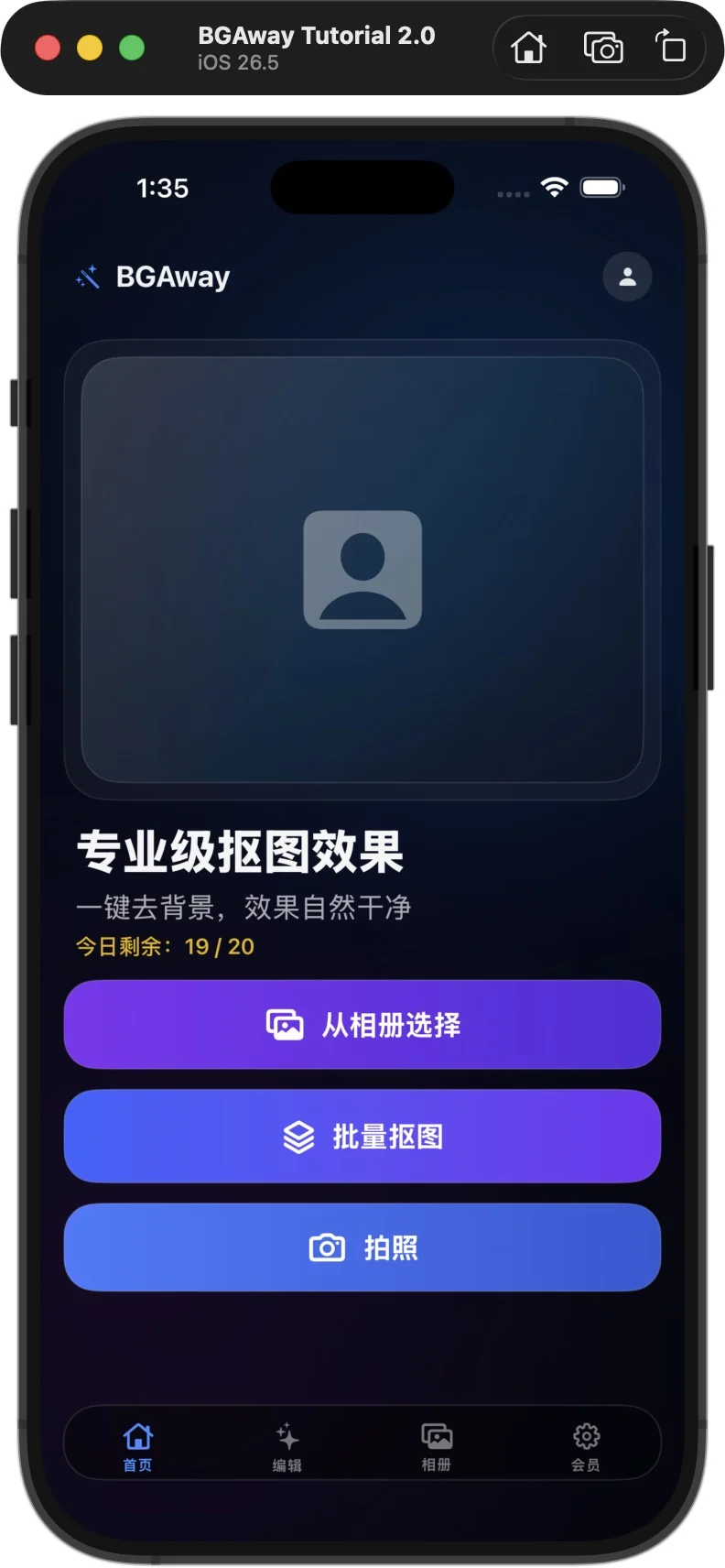
Keep a photo you may use in Photos, then tap Batch Remove (批量抠图) on the BGAway home screen. This path accepted a single photo; multiple images were not required. The home screen showed 19/20 free removals remaining.
2. Select one original photo
Tap Select Photos (选择照片), select the original apple photo in the system picker and confirm at the upper right. Do not select the earlier blue-background JPEG export. The queue showed 0/1 completed and a waiting item whose thumbnail still contained the original wall and surface.
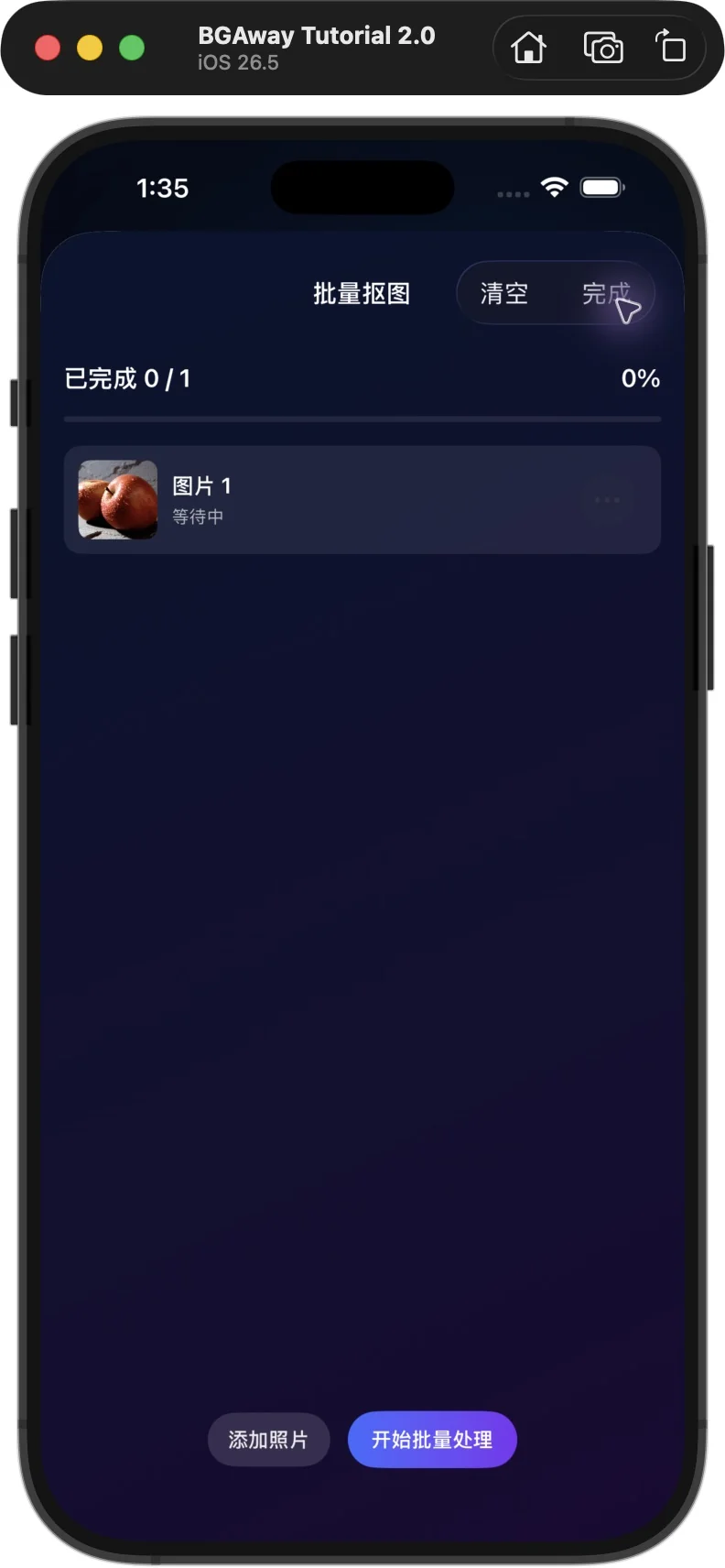
3. Start the batch
Tap Start Batch (开始批量处理) and wait for 1/1 completed and 100%. Start was tapped once, with no retry. This batch path saves its processed result directly; it has no separate Transparent preset selection step from the single-image editor.
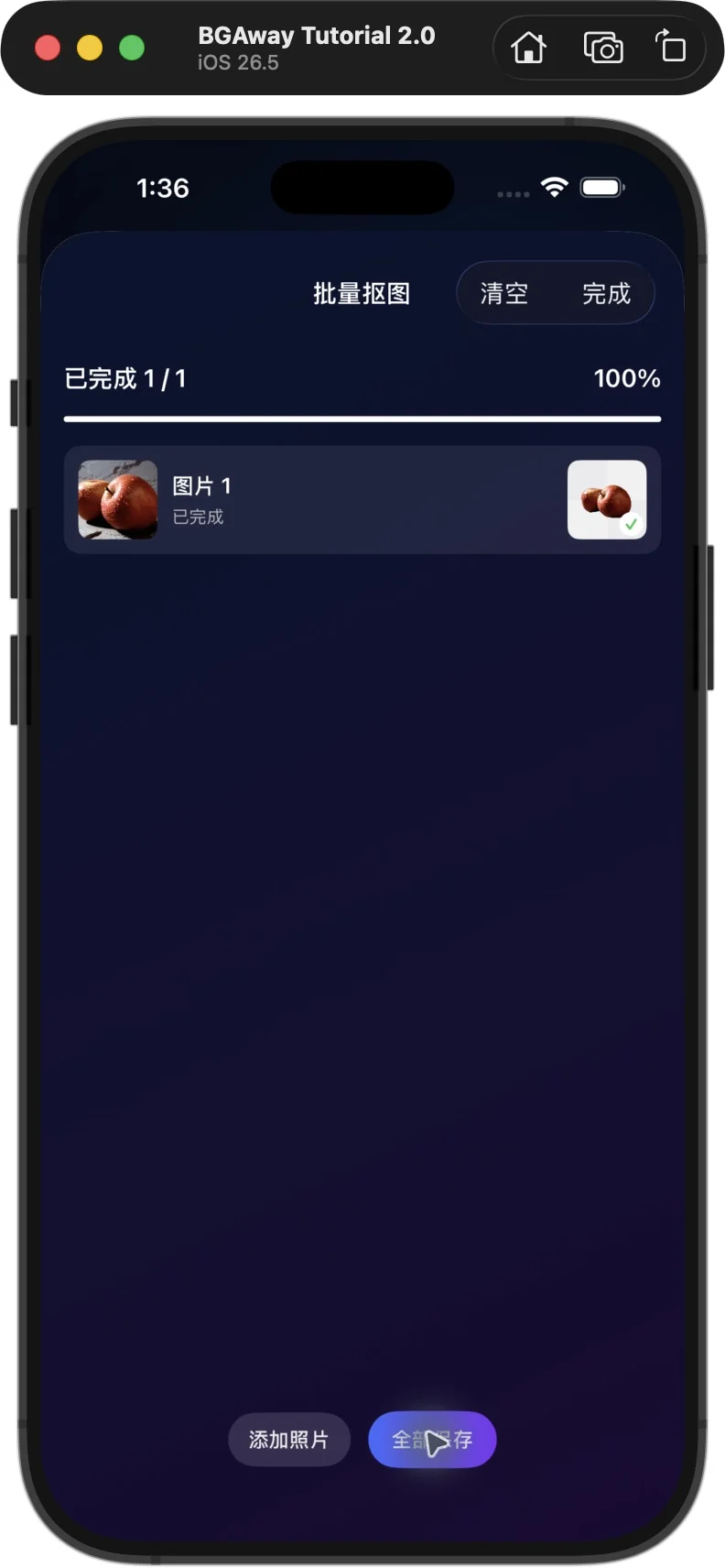
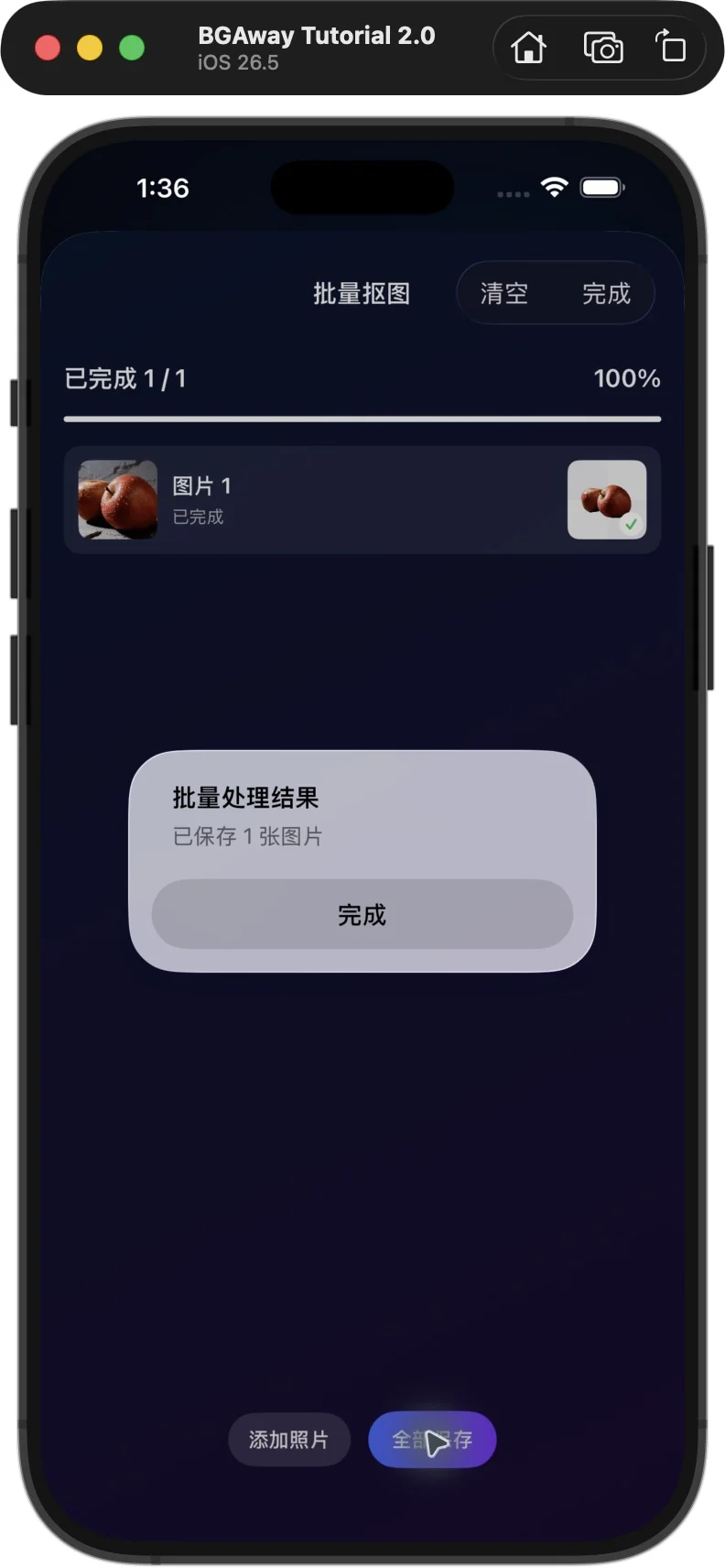
4. Tap Save All
Tap Save All (全部保存). The app reported one image saved. This device already had permission to add photos, so this session showed no new permission prompt and did not test denied permission. The saved original must still be checked; neither the preview nor the success message proves its format.
The actual saved file and independent check
The only new Photos original from this run, IMG_0009.PNG, was copied byte for byte without conversion, re-encoding or changing its file type. It has the PNG signature 89504E470D0A1A0A, RGBA mode and dimensions 960 × 605. Of 580,800 pixels, 357,753 are fully transparent (alpha 0), 10,611 are partly transparent (1–254), and 212,436 are fully opaque (255). All four corners have alpha 0 and a sample within an apple has alpha 255. Inspection on white and dark backgrounds confirmed removal of the original wall and surface, with the BGAway watermark retained at lower right. Those composites are diagnostic only; the original output is unchanged.
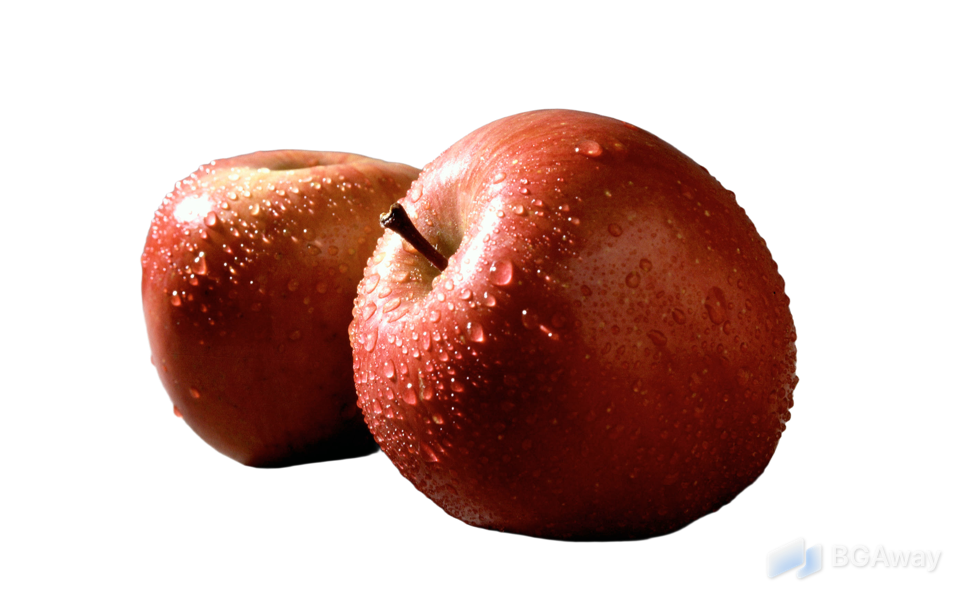
Open or download the actual transparent PNG. This is one one-image batch result from the local 2.0 (122) free-mode build, not a guarantee for other images or platforms.
How do transparent PNG and JPG differ?
PNG can store alpha transparency, but a PNG can also be fully opaque. Verification must establish an alpha channel with pixels that are not all opaque. Conventional JPG/JPEG does not preserve that alpha transparency; renaming a JPEG to .png cannot restore it. This walkthrough relies on the actual file format and alpha inspection, rather than the preview background or a checkerboard.
Free-mode facts and limits
The retained official description lists up to 20 successful free removals per day, export up to 1200px and a watermark. This run observed one quota decrement for a one-image batch (19/20 → 18/20), a 960px longest side and the BGAway watermark. The daily cap, reset timezone, maximum actual output size, multi-image batches, Pro entitlements and purchase options were not tested. The 960px size belongs to this sample, not every free export; no Pro behavior is promised.
Why did the earlier Save to Photos test produce JPG?
An earlier test of the same local 2.0 (122) build selected Transparent on the single-image result screen and used Save to Photos. That original was JPEG/RGB, 960 × 605, without alpha. It is retained as evidence of a different entry point and must not be renamed to PNG. The successful steps verified here use Batch Remove on the home screen and Save All. Repeating the single-image path or buying Pro is not part of this procedure.
See the earlier single-image JPEG for comparison. The local batch PNG is verified. Labeling this as an App Store physical-iPhone walkthrough would still require confirmation of that release, the same UI path and its original output. That physical-device check was not performed here.
Product, support and image credit
BGAway product page · Support · Privacy information · Apple App Store
Source photograph: Scott Bauer / USDA ARS, K7602-2, public domain; source and license information. UI captures and the saved file come from this 2.0 (122) simulator session, not promotional examples.
Related apps
 BGAway→