How to Print Multiple PDFs on Mac with BatchPrint
2026-10-21
Add PDFs, review their order and print settings, then check submission and the macOS printer queue. Based on published BatchPrint 1.0 instructions.
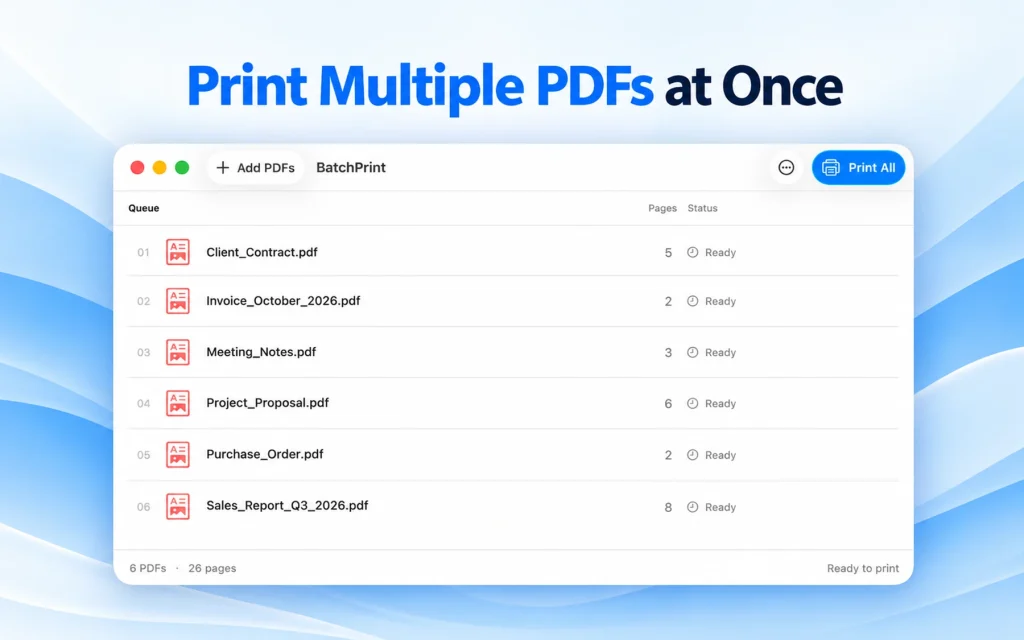
To print multiple PDFs on a Mac with BatchPrint, add the PDFs, check their queue order and previews, then choose Print All. Review the printer and settings in the macOS print panel before confirming submission. Check the macOS printer queue afterwards: Submitted in BatchPrint does not mean paper has finished printing.
This guide follows the published 1.0 features and the publisher’s support instructions, checked on 21 October 2026. Illustrations come from the Mac App Store 1.0 listing and show English controls. They are promotional images, not an installed-store-build walkthrough; their capture build and macOS version were not supplied.
Before you start
Use a Mac running macOS 14.0 or later, readable PDFs and a configured physical printer. Available settings and compatibility depend on macOS, the printer and its driver. Confirm the printer is connected and ready before submitting anything.
Invoices, handouts and reports in this guide mean documents already exported to PDF. BatchPrint 1.0 accepts PDFs only. It does not provide batch export to Save as PDF or the print panel’s Preview destination.
1. Add the PDFs
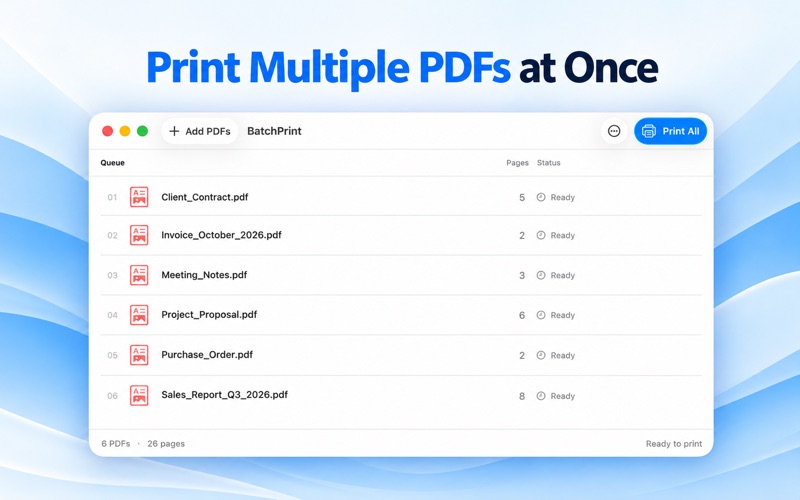
Choose Add PDFs and select the PDF files you want to print. The official instructions also allow dragging PDFs from Finder into BatchPrint. Check the file names and page counts in the list before continuing.
2. Check the queue, order and previews
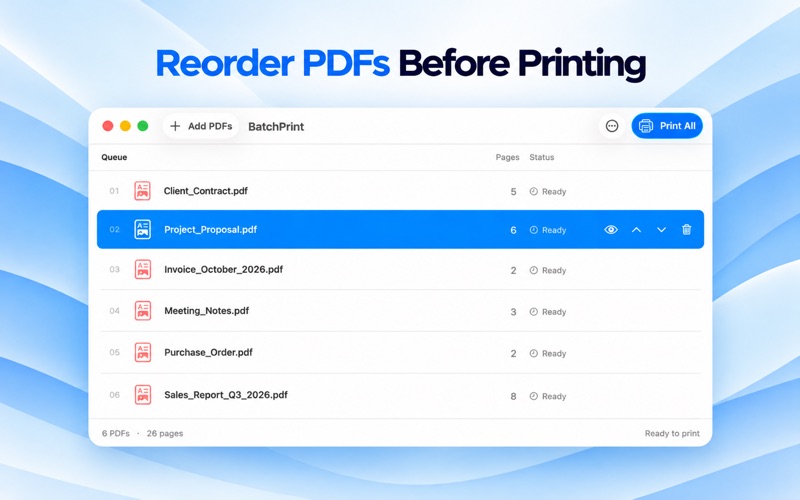
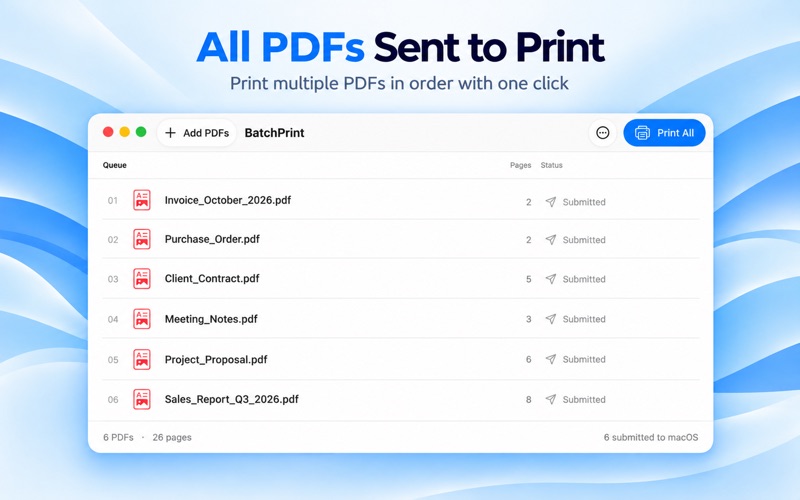
Review the queue from top to bottom. Use Move Up or Move Down on a file row or its context menu to arrange the submission order. The publisher’s instructions say PDFs are submitted in the order shown; the list does not report physical printing progress.
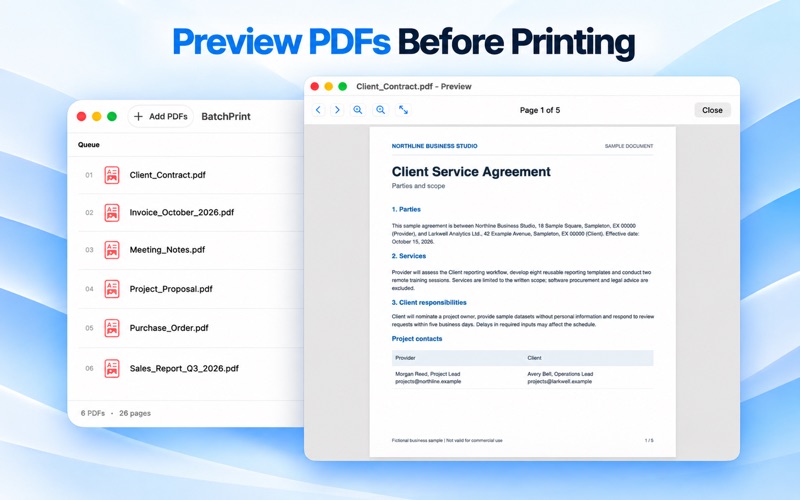
Choose Preview on a file row or its context menu to inspect the document. Check that it is the intended PDF before returning to the queue. This is the app’s document preview, separate from the print panel’s unsupported Preview output destination.
3. Review the macOS print settings
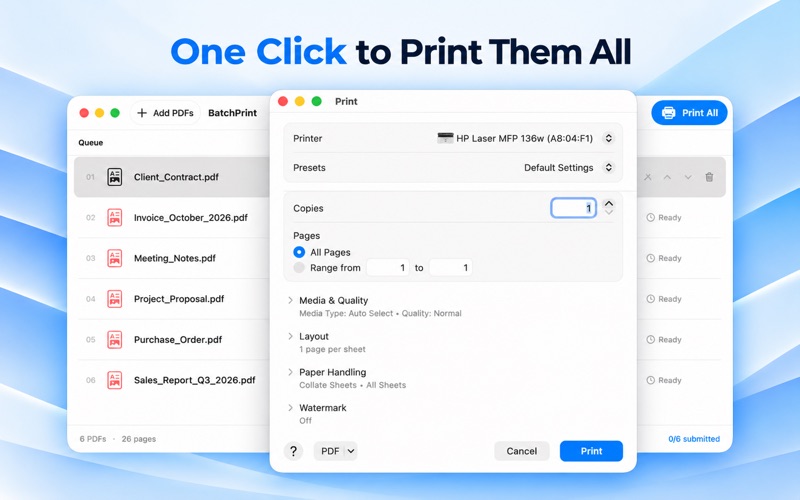
Choose Print All to open the macOS print panel. Select your configured physical printer and review the paper size, orientation and other options the panel offers. Do not assume every printer exposes the same paper, color or duplex settings.
The publisher documents reusing the selected batch settings for later PDFs. Follow the confirmations actually shown by macOS or your printer; neither the guide nor the poster’s “One Click” wording guarantees that every system confirmation is bypassed.
4. Confirm submission and read the status
When the printer and settings are correct, confirm in the macOS print panel to begin submitting jobs. Watch the submission status in BatchPrint. Submitted means the job has been handed to the macOS printing system; it is not confirmation that the printer has produced the pages.
5. Check the macOS printer queue
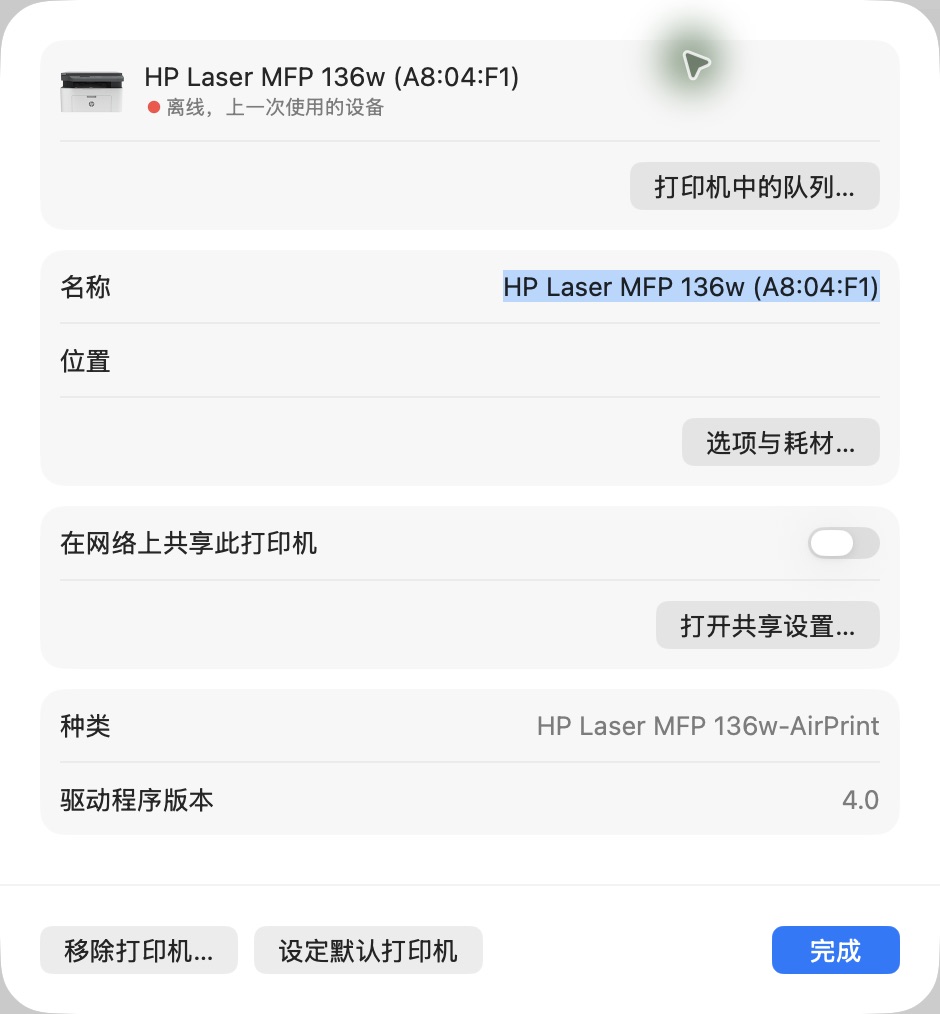
This is an independent macOS operation. The source note at the start covers the App Store illustrations in steps 1–4; the two images in this section are separate, real macOS screenshots. Recorded on 21 October 2026: macOS 26.3.1 (a), build 25D771280a, Simplified Chinese interface; configured HP Laser MFP 136w (A8:04:F1), AirPrint driver 4.0. The printer was offline.
Open System Settings and choose Printers & Scanners (打印机与扫描仪 in the recorded interface). Select the configured printer. Its detail window contains the queue button labeled 打印机中的队列… in these screenshots.
Click that queue button to open Print Center (打印中心). Select the same printer in the sidebar and inspect its title and job list. This Mac showed 没有正在等待的作业 (no waiting jobs); accessibility also reported 0 pending jobs. The window separately reported that the printer was offline.
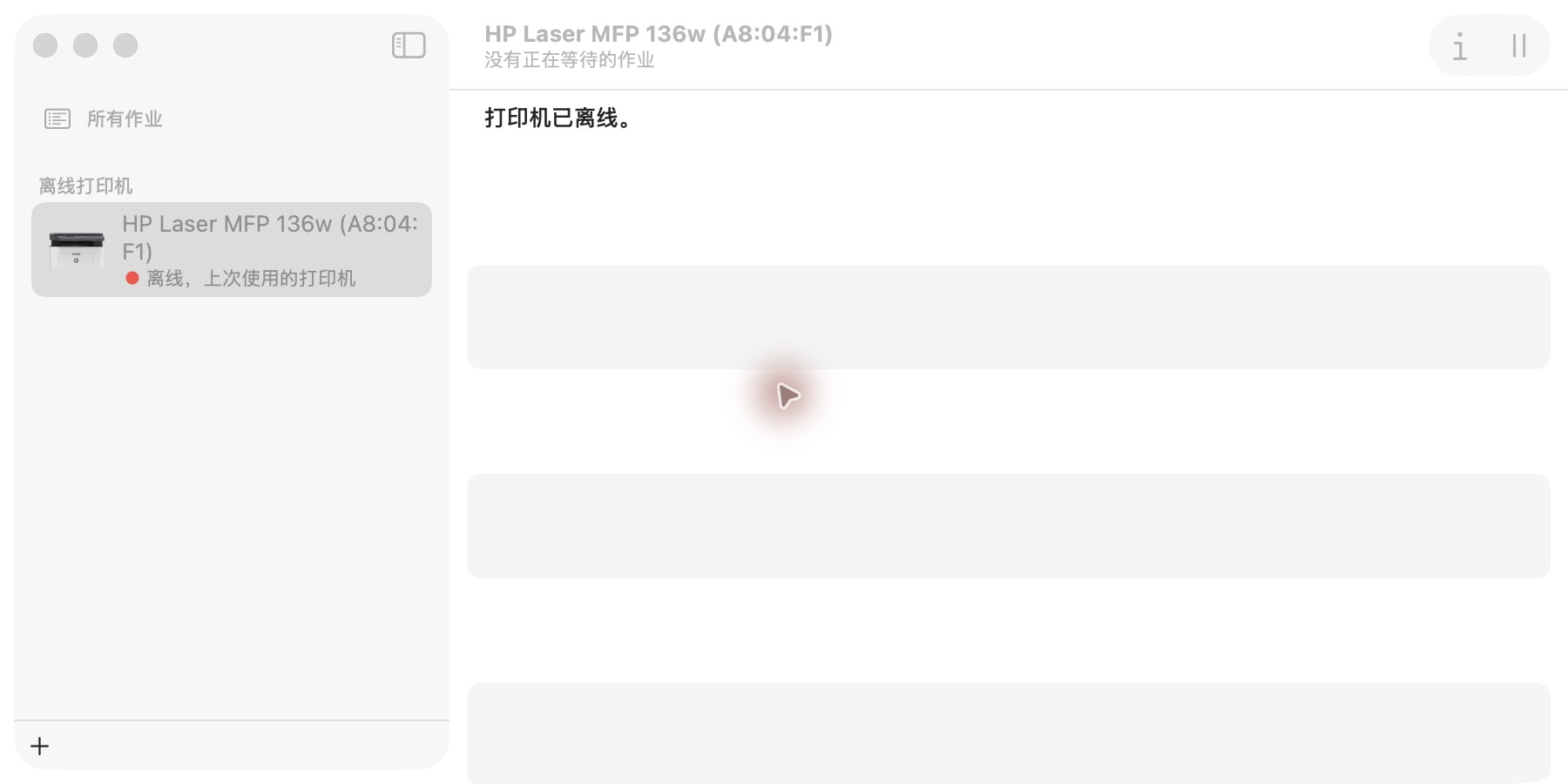
No print job was submitted or cleared, and no printer setting was changed to obtain these images. They demonstrate the system queue entry and its empty state at capture time. They do not show a PDF submitted by BatchPrint, successful cancellation or physical paper output.
If jobs are already present, inspect their existing status before deciding whether to submit PDFs again. BatchPrint’s file list, macOS print jobs and pages produced by a printer are separate stages. Confirm actual paper output at the printer.
Stopping a batch
According to official support, Cancel Queue stops later BatchPrint submissions after the current file. It does not withdraw jobs already handed to macOS. Manage already submitted jobs in the macOS printer queue, using the controls available there; cancellation cannot guarantee recovery of a job the printer has already received.
Frequently asked questions
Can I change the order of the PDFs?
Yes. Before submitting, use Move Up or Move Down to arrange the queue. The official instructions say files are submitted in the displayed order.
Can I add Word or Excel files?
BatchPrint 1.0 accepts PDFs only. Export the document to PDF in its original application, check that PDF and then add it to the queue.
Does Submitted mean printing is complete?
No. It means the job was handed to macOS. Check the system printer queue and the printer itself for progress and paper output.
Can I use Save as PDF instead of a physical printer?
No. Version 1.0 targets configured physical printers; it does not support batch output to Save as PDF or the print panel’s Preview destination. Printer and driver compatibility still apply.
Where can I find product and purchase details?
See the BatchPrint product page and Mac App Store purchase link. For documented controls and troubleshooting, use official support.
Related apps
 Batch Print – PDF Printer→